How to Change Font in Malloy Studio
Malloy Studio supports Google Fonts only.
To change a font, you must specify the font name directly in your prompt.
You do not upload font files.
You do not select fonts from a separate font panel.
Font changes are controlled through prompting.
Before You Start
Make sure the font you want is available on:
https://fonts.google.com
If the font is not listed there, it is not supported.
Method 1: Change the Font Directly
Add the font name clearly in your prompt.
Example
Use the exact font name as shown on Google Fonts.
Incorrect spelling or partial names may not work.
Method 2: Request Font Options
If you are unsure which font to use, you can request font suggestions directly in your prompt.
Example:
Malloy Studio will return a list of supported Google Font options in your control settings for that motion graphic.
Change Font for Specific Text
If your animation has multiple text inputs, specify which one should change.
Example
Be explicit. Do not assume the AI will guess.
Supported Fonts
✔ Any font listed on Google Fonts
✘ Custom fonts
✘ Uploaded fonts
✘ Paid font libraries
Only Google Fonts are supported.
Troubleshooting
If the font does not change:
Check the spelling carefully
Confirm the font exists on Google Fonts
Try using exact font family name listed on Google Fonts (Go to "Get embed code" for the font you want to use and use the name indicated below)
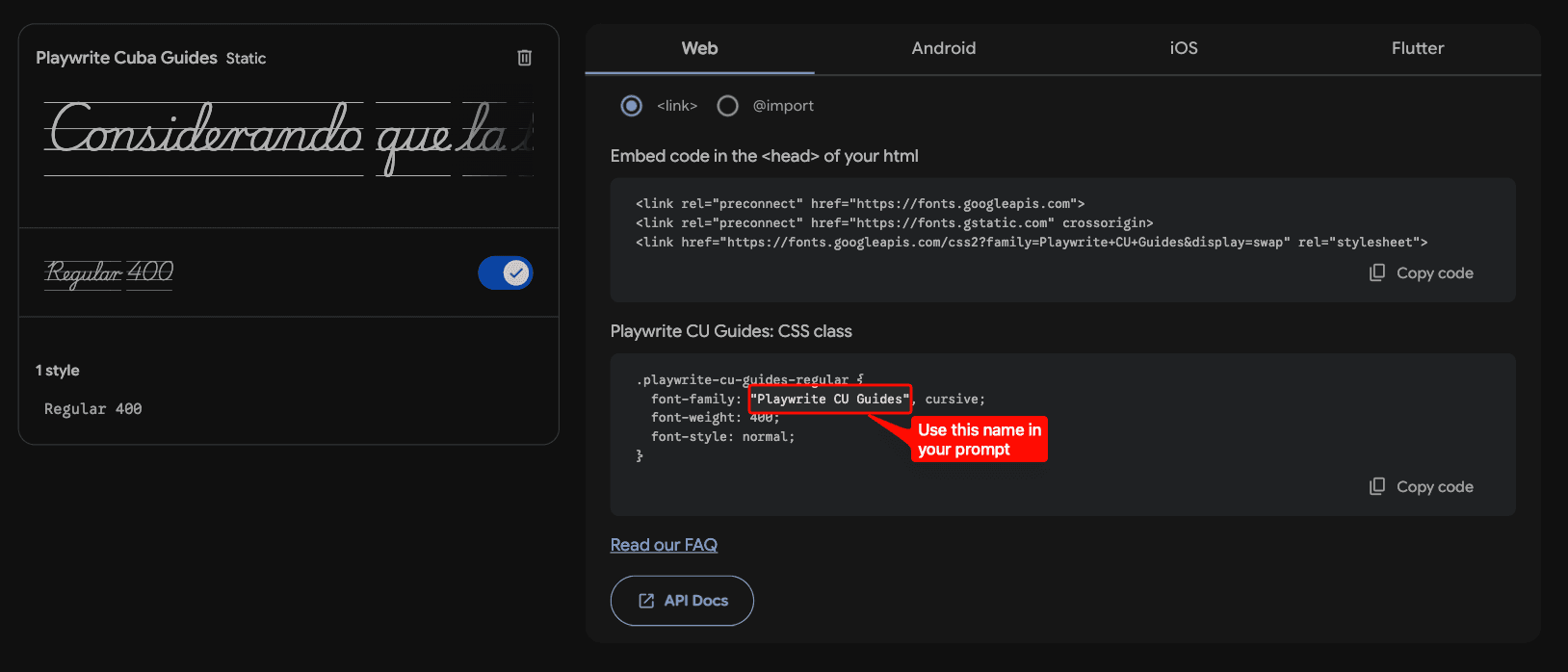
Some fonts have slightly different family names than expected.
Summary
To change a font:
Find the font on Google Fonts
Copy the exact name
Add it clearly to your prompt
No additional configuration is required.