Understanding the Canvas and Control Panel
Malloy Studio has two main areas:
Canvas
Control Pane
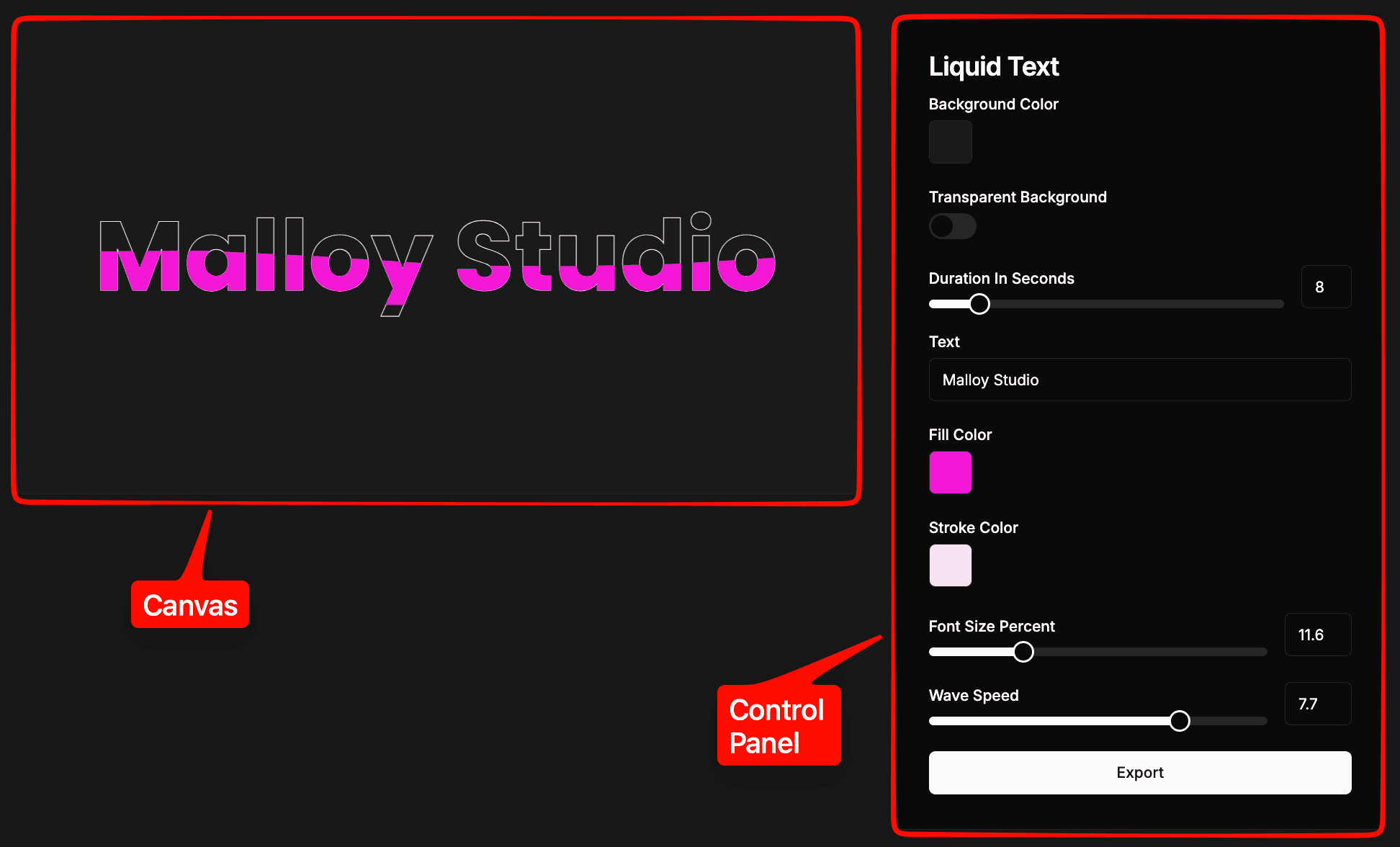
These terms are important when writing prompts.
If you are talking about the preview area, call it the Canvas.
If you want to create settings that users can change, call it the Control Panel or just controls.
Using the correct names makes your prompt clearer.
What Is the Canvas?
The Canvas is the large preview area on the left.
This is where your animation shows.
Everything visual is part of the Canvas:
Text
Logos
Shapes
Cards
Layout
Position
Motion
Background layers
If you want to control how something looks or where it sits, you are changing the Canvas.
The Canvas is the visual result of your prompt.
Example
What Is the Control Panel?
The Control Panel is on the right.
This is where settings appear after generation.
Examples of Control Panel items:
Text fields
Color pickers
Font size sliders
Speed sliders
Duration controls
Background toggle
The Control Panel only shows what your prompt creates.
If you want something to be adjustable, state it clearly in your prompt.
Example
How Prompting Connects Both Areas
Your prompt controls two things:
What appears on the Canvas
What can be changed in the Control Panel
If something should be visible, describe it for the Canvas.
If something should be editable, define it for the Control Panel.
Simple Rule
Canvas = What you see.
Control Panel = What you can change.
When prompting:
Use Canvas for layout and structure.
Use Control Panel for adjustable inputs.
Clear separation between these two leads to flexible, reusable animations.